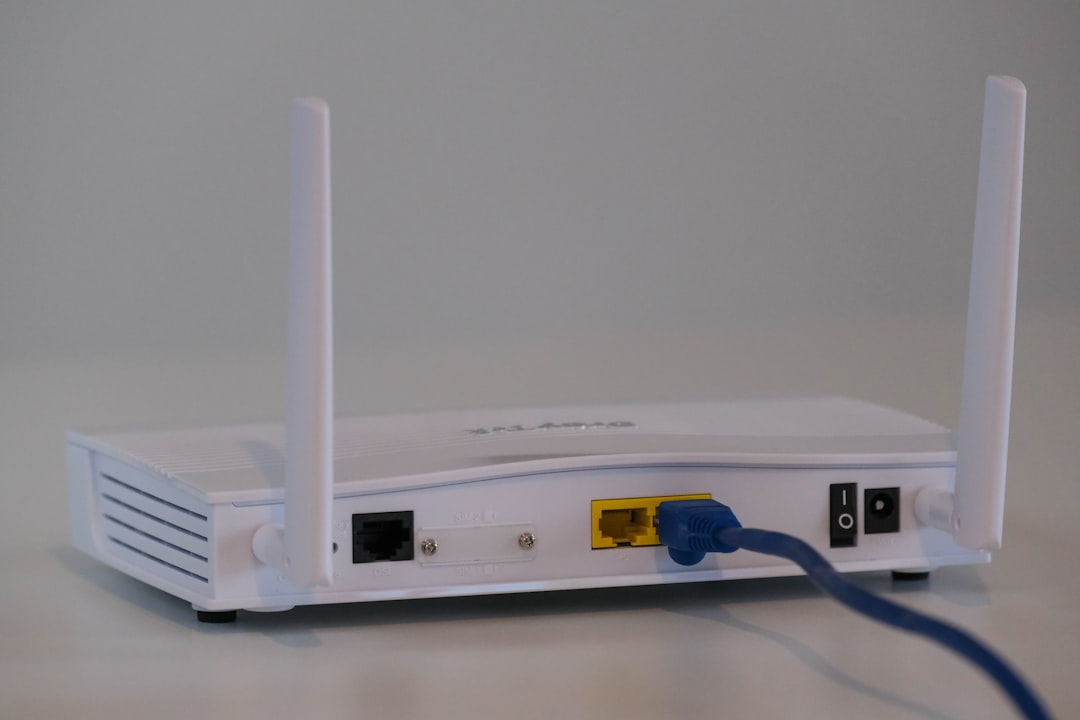
Before You Call Your ISP — Try This First
Most Wi-Fi connectivity issues in South Africa are resolved by a simple restart sequence before any fault is logged with the Internet Service Provider. ISPs report that the majority of home support calls are resolved in the first five minutes by following the correct restart order. This guide walks through the full diagnostic sequence so you can identify and fix the problem yourself or give your ISP accurate information when you do call.
Step 1 — Restart in the Correct Order
The sequence matters. Switch off and unplug, in this order:
- Your router
- Your ONT or modem (the box your ISP installed, usually connected to the fibre cable entering the wall)
Wait 60 seconds — not 10 seconds. Some equipment takes this long to fully reset its memory and release IP address leases. Then power up in reverse order:
- ONT/modem first. Wait until its status lights are stable and show a live connection (usually a solid or blinking internet light).
- Router second. Wait until your Wi-Fi SSID reappears on your devices.
This sequence resolves approximately 60–70% of common home connectivity issues.
Step 2 — Check What Specifically Is Not Working
Connect a device via an ethernet cable directly to the router (or ONT if you have a single unit). If the wired connection works but Wi-Fi does not, the problem is specifically with the wireless function of your router. If the wired connection also does not work, the problem is upstream — the ISP line, the ONT, or the router itself.
Check the lights on your ONT/modem. A red or absent "WAN" or "Internet" light typically indicates a line fault — not a router problem. A solid "LAN" light with internet issues indicates the problem is the router or your ISP's authentication server.
Step 3 — Check ISP Outages
South African fibre ISPs (Openserve, Vumatel, Frogfoot, Metrofibre and others) experience periodic outages. Before spending time troubleshooting your equipment, check:
- Your ISP's status page or Twitter/X account — most post outage notifications within 15–30 minutes of a confirmed fault
- Ask a neighbour on the same ISP whether they are also affected — a street-level outage is the ISP's problem, not yours
Step 4 — Check Your Router Settings
If your router is online but specific devices cannot connect, check: whether the device is connecting to the correct Wi-Fi network (not a neighbour's network with a similar name); whether the correct Wi-Fi password is being entered; whether the device's Wi-Fi is turned on; and whether the device has an IP address (check in your device's network settings — if it shows a 169.254.x.x address, it is not getting an IP from the router, usually meaning the router's DHCP service needs a restart).
When the Problem Is the Router
Routers have a typical lifespan of four to seven years. Signs that your router may need replacing: persistent dropouts that a restart temporarily fixes, very slow speeds despite a healthy ISP connection, inability to connect devices that other routers would handle, or overheating. Budget routers in South Africa cost R500–R1,500; mid-range routers with better range and handling of multiple devices cost R1,500–R4,000. ISP-provided routers are generally adequate for most households but may be insufficient for large homes or high device counts.
When to Call Your ISP
Call your ISP when: the ONT shows no internet light after a full restart cycle; your speed test shows significantly below your subscribed speed on a wired connection; the outage has persisted for more than 30 minutes without an ISP announcement; or multiple restarts have not resolved the issue. Have your account number and a description of the fault (which lights are on, what you have tried) ready to reduce call handling time.